Z-Image-Turbo进行LoRA微调流程

训练工具准备

安装环境

我使用ai-toolkit进行训练。个人偏好使用conda来配置训练环境:

1
2
3
4
5
conda create -n ai-toolkit python=3.12
conda activate ai-toolkit
git clone https://github.com/ostris/ai-toolkit.git
pip install --no-cache-dir torch==2.7.0 torchvision==0.22.0 torchaudio==2.7.0 --index-url https://download.pytorch.org/whl/cu126
pip install -r requirements.txt

然后启动GUI来进行之后的操作。GUI不需要保持运行状态也可执行任务,只是用来启动/暂停/监控任务的。

1
2
cd ui
npm run build_and_start

【补充】如果在训练开始时遇到了“clip代码中from pkg_resources import packaging报错缺少pkg_resources”的问题

检测当前环境是否缺这个包:

1
python -c "import setuptools, pkg_resources; print('setuptools', setuptools.__version__)"

输出:No module named pkg_resources,那么用下面的修复

修复:

1
python -m pip install -U "setuptools<81" wheel

原因:“setuptools81移除pkg_resources”这个包。

【补充】训练用的环境是哪个环境?

官方推荐使用.venv的方式安装环境。代码中也是优先检测项目内的虚拟环境,如果存在就直接用(.venv\Scripts\python.exevenv\Scripts\python.exe);否则就会使用当前终端的环境变量。所以,如果用全局环境或conda,就不要创建venv却不配环境。

Z-Image-Turbo模型准备

下载模型本体

1
2
pip install modelscope
modelscope download --model Tongyi-MAI/Z-Image-Turbo --local_dir ".\"

构建数据集

tagger

请claude帮我写了个调用lmstudio-api的代码。模型采用的是qwen3-VL-8B:Q6K

提示词采用三段结构:

1
2
3
4
5
6
7
# 默认 Prompt
DEFAULT_PROMPT = """请详细描述这张图片中的内容,包括主体、动作、背景、风格等。
只需返回描述文本,不要使用markdown符号,不要任何额外说明。
首先进行整体描述,例如:人物、镜头、动作/表情、场景类别等。
之后进行详细描述。"""
DEFAULT_PREFIX = "" # 前缀 prompt(如:需在描述中的第一句话提及画中的人物是xxx。)
DEFAULT_SUFFIX = "" # 后缀 prompt(适合放一些额外的需求补充,如:不对画面中的文字信息进行描述)

然后前驱和后继prompt可以通过参数来控制,方便对混合数据集进行差异化打标。

tagger.py完整代码如下:

1
2
3
4
5
6
7
8
9
10
11
12
13
14
15
16
17
18
19
20
21
22
23
24
25
26
27
28
29
30
31
32
33
34
35
36
37
38
39
40
41
42
43
44
45
46
47
48
49
50
51
52
53
54
55
56
57
58
59
60
61
62
63
64
65
66
67
68
69
70
71
72
73
74
75
76
77
78
79
80
81
82
83
84
85
86
87
88
89
90
91
92
93
94
95
96
97
98
99
100
101
102
103
104
105
106
107
108
109
110
111
112
113
114
115
116
117
118
119
120
121
122
123
124
125
126
127
128
129
130
131
132
133
134
135
136
137
138
139
140
141
142
143
144
145
146
147
148
149
150
151
152
153
154
155
156
157
158
159
160
161
162
163
164
165
166
167
168
169
170
171
172
173
174
175
176
177
178
179
180
181
182
183
184
185
186
187
188
189
190
191
192
193
194
195
196
197
198
199
200
201
202
203
204
205
206
207
208
209
210
211
212
213
214
215
216
217
218
219
220
221
222
223
224
225
226
227
228
229
230
231
232
233
234
235
236
237
238
239
240
241
242
243
244
245
246
247
248
249
250
251
252
253
254
255
256
257
258
259
260
261
262
263
264
265
266
267
268
269
270
271
272
273
274
275
276
277
278
279
280
281
282
283
284
285
286
287
288
289
290
291
292
293
294
295
296
297
298
299
300
301
302
303
304
305
306
307
308
309
310
311
312
313
314
315
316
317
318
319
320
321
322
323
324
325
326
327
328
329
330
331
332
333
334
335
336
337
338
339
340
341
342
343
344
345
346
347
348
349
350
351
352
353
354
355
356
357
358
359
360
361
362
363
364
365
366
367
368
369
370
371
372
373
374
375
376
377
378
379
380
381
382
383
384
385
386
387
388
389
390
391
392
393
394
395
396
397
398
399
400
401
402
403
404
405
406
407
408
409
410
411
412
413
414
415
416
417
418
419
420
421
422
423
424
425
426
"""
使用 LM Studio API 给图片打标
支持单张图片测试和批量文件夹处理
"""

import base64
import requests
import json
import argparse
import os
import shutil
import hashlib
from pathlib import Path
from datetime import datetime
from typing import Optional, List, Tuple

# ==================== 配置参数 ====================

DEFAULT_API_URL = "http://localhost:1234/v1/chat/completions"
DEFAULT_MODEL = "qwen/qwen3-vl-8b"
TIMEOUT = 30 # API 请求超时时间(秒)

# 默认 Prompt(用户可以根据需要修改)
DEFAULT_PROMPT = """请详细描述这张图片中的内容,包括主体、动作、背景、风格等。
只需返回描述文本,不要使用markdown符号,不要任何额外说明。
首先进行整体描述,例如:人物、镜头、动作/表情、场景类别等。
之后进行详细描述。"""
DEFAULT_PREFIX = "" # 前缀 prompt(如:需在描述中的第一句话提及画中的人物是xxx。)
DEFAULT_SUFFIX = "" # 后缀 prompt(适合放一些额外的需求补充,如:不对画面中的文字信息进行描述)

# 生成配置
MAX_TOKENS = 2048
TEMPERATURE = 0.7

# 支持的图片格式
SUPPORTED_EXTS = {".jpg", ".jpeg", ".png", ".webp"}

# ==================== 核心函数 ====================


def calculate_md5(file_path: str) -> str:
"""计算文件的 MD5 hash"""
md5_hash = hashlib.md5()
with open(file_path, "rb") as f:
for chunk in iter(lambda: f.read(4096), b""):
md5_hash.update(chunk)
return md5_hash.hexdigest()


def encode_image(image_path: str) -> str:
"""将图片转换为 base64 编码"""
with open(image_path, "rb") as img_file:
encoded_string = base64.b64encode(img_file.read()).decode("utf-8")
return encoded_string


def call_lm_studio_api(
image_base64: str,
prompt: str,
prefix: str = "",
suffix: str = "",
api_url: str = DEFAULT_API_URL,
model: str = DEFAULT_MODEL,
) -> Optional[str]:
"""
调用 LM Studio API 进行图片打标

参数:
image_base64: 图片的 base64 编码
prompt: 主要提示词
prefix: 前缀提示词(如触发词)
suffix: 后缀提示词
api_url: API 地址
model: 模型名称

返回:
成功: 返回标签文本
失败: 返回 None
"""
# 组合完整的 prompt:前缀 + 主体 + 后缀
full_prompt = f"{prefix}{prompt}{suffix}".strip()
payload = {
"model": model,
"messages": [
{
"role": "user",
"content": [
{"type": "text", "text": full_prompt},
{
"type": "image_url",
"image_url": {"url": f"data:image/jpeg;base64,{image_base64}"},
},
],
}
],
"max_tokens": MAX_TOKENS,
"temperature": TEMPERATURE,
}

try:
response = requests.post(api_url, json=payload, timeout=TIMEOUT)
response.raise_for_status()

result = response.json()
caption = result["choices"][0]["message"]["content"]
return caption.strip()

except requests.Timeout:
print(f" ⚠ 超时 (>{TIMEOUT}s)")
return None
except requests.ConnectionError:
print(f" ❌ 连接失败:无法连接到 LM Studio API ({api_url})")
print(" 请确保:")
print(" 1. LM Studio 已启动")
print(f" 2. 已加载 {model} 模型")
print(" 3. API 服务已开启(Developer → Start Server)")
return None
except KeyError:
print(f" ❌ API 返回格式错误")
return None
except Exception as e:
print(f" ❌ API 错误: {str(e)}")
return None


def tag_single_image(
image_path: str,
prompt: str = DEFAULT_PROMPT,
prefix: str = DEFAULT_PREFIX,
suffix: str = DEFAULT_SUFFIX,
api_url: str = DEFAULT_API_URL,
model: str = DEFAULT_MODEL,
) -> Optional[str]:
"""
单张图片打标(测试模式)

返回:
成功: 返回标签文本
失败: 返回 None
"""
if not os.path.exists(image_path):
print(f"❌ 图片不存在: {image_path}")
return None

print(f"📷 处理图片: {image_path}")
print(f"🔄 正在调用 API...")

# 显示完整 prompt(用于调试)
full_prompt = f"{prefix}{prompt}{suffix}".strip()
print(f"📝 完整 Prompt: {full_prompt}")

try:
image_base64 = encode_image(image_path)
caption = call_lm_studio_api(
image_base64, prompt, prefix, suffix, api_url, model
)
return caption
except Exception as e:
print(f"❌ 编码图片失败: {str(e)}")
return None


def collect_images(input_dir: str) -> List[str]:
"""
递归收集所有支持的图片文件

返回:
图片路径列表
"""
images = []
input_path = Path(input_dir)

if not input_path.exists():
print(f"❌ 输入目录不存在: {input_dir}")
return images

for file_path in input_path.rglob("*"):
if file_path.is_file() and file_path.suffix.lower() in SUPPORTED_EXTS:
images.append(str(file_path))

return sorted(images)


def save_caption(txt_path: str, caption: str):
"""保存标签到文本文件"""
with open(txt_path, "w", encoding="utf-8") as f:
f.write(caption)


def log_error(log_file: str, image_path: str, error_msg: str):
"""记录失败日志"""
timestamp = datetime.now().strftime("%Y-%m-%d %H:%M:%S")
with open(log_file, "a", encoding="utf-8") as f:
f.write(f"{timestamp} | {image_path} | {error_msg}\n")


def batch_tag_folder(
input_dir: str,
output_dir: str,
prompt: str = DEFAULT_PROMPT,
prefix: str = DEFAULT_PREFIX,
suffix: str = DEFAULT_SUFFIX,
api_url: str = DEFAULT_API_URL,
model: str = DEFAULT_MODEL,
overwrite: bool = False,
):
"""
批量处理文件夹

参数:
input_dir: 输入目录(递归处理)
output_dir: 输出目录(扁平化,使用 MD5 命名)
prompt: 打标提示词
prefix: 前缀提示词(如触发词)
suffix: 后缀提示词
api_url: LM Studio API 地址
model: 模型名称
overwrite: 是否覆盖已有标签
"""
# 创建输出目录
output_path = Path(output_dir)
output_path.mkdir(parents=True, exist_ok=True)

# 收集所有图片
print(f"📁 扫描输入目录: {input_dir}")
images = collect_images(input_dir)

if not images:
print("❌ 未找到任何图片文件")
return

# 组合完整 prompt
full_prompt = f"{prefix}{prompt}{suffix}".strip()

print(f"✓ 找到 {len(images)} 张图片")
print(f"📂 输出目录: {output_dir}")
print(f"🤖 模型: {model}")
print(f"📝 完整 Prompt: {full_prompt}")
print("-" * 60)

# 失败日志路径
log_file = output_path / "failed.log"

# 统计信息
success_count = 0
skipped_count = 0
failed_count = 0

# 用于去重的 hash 集合
processed_hashes = set()

for idx, image_path in enumerate(images, 1):
print(f"[{idx}/{len(images)}] {Path(image_path).name}")

try:
# 计算 MD5 hash
file_hash = calculate_md5(image_path)

# 检查是否已处理过(去重)
if file_hash in processed_hashes:
print(f" ⊘ 跳过(重复文件,MD5: {file_hash[:8]}...)")
skipped_count += 1
continue

# 获取文件扩展名
ext = Path(image_path).suffix.lower()

# 输出文件名(使用 MD5)
output_image_name = f"{file_hash}{ext}"
output_txt_name = f"{file_hash}.txt"

output_image_path = output_path / output_image_name
output_txt_path = output_path / output_txt_name

# 检查是否已有标签文件
if output_txt_path.exists() and not overwrite:
print(f" ⊘ 跳过(已存在标签文件)")
processed_hashes.add(file_hash)
skipped_count += 1
continue

# 编码图片
image_base64 = encode_image(image_path)

# 调用 API
caption = call_lm_studio_api(
image_base64, prompt, prefix, suffix, api_url, model
)

if caption is None:
failed_count += 1
log_error(str(log_file), image_path, "API 调用失败或超时")
continue

# 复制图片到输出目录
if not output_image_path.exists():
shutil.copy2(image_path, output_image_path)

# 保存标签
save_caption(str(output_txt_path), caption)

print(f" ✓ 已保存: {output_txt_name}")
processed_hashes.add(file_hash)
success_count += 1

except Exception as e:
print(f" ❌ 处理失败: {str(e)}")
failed_count += 1
log_error(str(log_file), image_path, str(e))

# 打印统计信息
print("-" * 60)
print(f"✅ 成功: {success_count}")
print(f"⊘ 跳过: {skipped_count}")
print(f"❌ 失败: {failed_count}")

if failed_count > 0:
print(f"📋 失败日志: {log_file}")


# ==================== CLI 入口 ====================


def main():
parser = argparse.ArgumentParser(
description="使用 LM Studio API 给图片打标",
formatter_class=argparse.RawDescriptionHelpFormatter,
epilog="""
示例用法:
# 单张图片测试
python tagger.py --image "D:\\test\\sample.jpg"

# 批量处理文件夹
python tagger.py --input "D:\\dataset\\images" --output "D:\\dataset\\tagged"

# 强制覆盖已有标签
python tagger.py --input "..." --output "..." --overwrite

# 自定义 API 地址和模型
python tagger.py --input "..." --output "..." --api-url "http://192.168.1.100:1234" --model "qwen/qwen2-vl-72b"
""",
)

# 模式选择
mode_group = parser.add_mutually_exclusive_group(required=True)
mode_group.add_argument("--image", type=str, help="单张图片路径(测试模式)")
mode_group.add_argument("--input", type=str, help="输入目录(批量处理模式)")

# 批量处理参数
parser.add_argument("--output", type=str, help="输出目录(批量模式必需)")

# 可选参数
parser.add_argument(
"--prompt",
type=str,
default=DEFAULT_PROMPT,
help=f'打标提示词(默认: "{DEFAULT_PROMPT}")',
)
parser.add_argument(
"--prefix",
type=str,
default=DEFAULT_PREFIX,
help='前缀提示词(如触发词),示例: "sks woman, "',
)
parser.add_argument(
"--suffix",
type=str,
default=DEFAULT_SUFFIX,
help='后缀提示词,示例: ", high quality, masterpiece"',
)
parser.add_argument(
"--api-url",
type=str,
default=DEFAULT_API_URL,
help=f"LM Studio API 地址(默认: {DEFAULT_API_URL})",
)
parser.add_argument(
"--model",
type=str,
default=DEFAULT_MODEL,
help=f"模型名称(默认: {DEFAULT_MODEL})",
)
parser.add_argument("--overwrite", action="store_true", help="覆盖已有标签文件")

args = parser.parse_args()

# 单张图片测试模式
if args.image:
caption = tag_single_image(
args.image,
prompt=args.prompt,
prefix=args.prefix,
suffix=args.suffix,
api_url=args.api_url,
model=args.model,
)

if caption:
print("\n" + "=" * 60)
print("📝 打标结果:")
print("=" * 60)
print(caption)
print("=" * 60)
else:
print("\n❌ 打标失败")

# 批量处理模式
elif args.input:
if not args.output:
parser.error("批量模式需要指定 --output 参数")

batch_tag_folder(
input_dir=args.input,
output_dir=args.output,
prompt=args.prompt,
prefix=args.prefix,
suffix=args.suffix,
api_url=args.api_url,
model=args.model,
overwrite=args.overwrite,
)


if __name__ == "__main__":
main()

用法:

  1. 单张图片测试,不会保存图片和标签

    python tagger.py --image 图片路径 --prefix "在输出中首先说明图片中的人物叫做Vanilla。" --suffix "保持客观表述,不要美化"

  2. 将一个文件夹内的所有图片(递归)进行打标,然后以图文对的形式(单层,非递归)保存至另一文件夹

    python tagger.py --input 输入文件夹路径 --output 输出文件夹路径 --prefix 前驱提示词 --suffix 后继提示词

  3. 补充性打标。删除output文件夹中不满意的标签文本文件,然后再次执行指令。代码会跳过已经存在的图文对,只对缺失的进行打标。

  4. 覆盖。加入--overwrite参数,不检查是否存在标签/图文对,直接覆盖打标。

    python tagger.py --input 输入文件夹路径 --output 输出文件夹路径 --prefix 前驱提示词 --suffix 后继提示词 -overwrite

使用md5进行去重。所以输入文件夹中若有2张相同内容图片,只会被打标一次。

我本次微调用了3个数据集。

  • 需要模拟的角色(共计497张):python .\tagger.py --input C:\Users\Vanilla\Downloads\vanilla20260213 --prefix "不需要说的太好看,客观描述即可。多描述五官。在输出中提到该人的名字是Vanilla。" --output c:\Users\Vanilla\Downloads\vanilla20260213_tag
  • 有助于模型学习的cos照(由于太多,走silicon并发,共计499张):python .\tagger_silicon_concurrent.py --input c:\Users\Vanilla\Desktop\pic\cos20260214 --output c:\Users\Vanilla\Downloads\cos20260214_tag
  • 其他图片(共计247张):python .\tagger.py --input c:\Users\Vanilla\Downloads\3d20260213 --output c:\Users\Vanilla\Downloads\3d20260213_tag

【补充】如果是为了训练一个人脸LoRA,那么似乎是没有必要进行打标的。打标只是为了确保模型在微调之后的泛化性。如果只是希望模型微调后生成的人脸完全一致,那么建议不打标。如果也要微调画风的话,那么应该还是要打标。

previewer

再一次的,让claude写个一个html生成器,方便图文对应的预览所有图文对。

完整previewer.py如下:

1
2
3
4
5
6
7
8
9
10
11
12
13
14
15
16
17
18
19
20
21
22
23
24
25
26
27
28
29
30
31
32
33
34
35
36
37
38
39
40
41
42
43
44
45
46
47
48
49
50
51
52
53
54
55
56
57
58
59
60
61
62
63
64
65
66
67
68
69
70
71
72
73
74
75
76
77
78
79
80
81
82
83
84
85
86
87
88
89
90
91
92
93
94
95
96
97
98
99
100
101
102
103
104
105
106
107
108
109
110
111
112
113
114
115
116
117
118
119
120
121
122
123
124
125
126
127
128
129
130
131
132
133
134
135
136
137
138
139
140
141
142
143
144
145
146
147
148
149
150
151
152
153
154
155
156
157
158
159
160
161
162
163
164
165
166
167
168
169
170
171
172
173
174
175
176
177
178
179
180
181
182
183
184
185
186
187
188
189
190
191
192
193
194
195
196
197
198
199
200
201
202
203
204
205
206
207
208
209
210
211
212
213
214
215
216
217
218
219
220
221
222
223
224
225
226
227
228
229
230
231
232
233
234
235
236
237
238
239
240
241
242
243
244
245
246
247
248
249
250
251
252
253
254
255
256
257
258
259
260
261
262
263
264
265
266
267
268
269
270
271
272
273
274
275
276
277
278
279
280
281
282
283
284
285
286
287
288
289
290
291
292
293
294
295
296
297
298
299
300
301
302
303
304
305
306
307
308
309
310
311
312
313
314
315
316
317
318
319
320
321
322
323
324
325
326
327
328
329
330
331
332
333
334
335
336
337
338
339
340
341
342
343
344
345
346
347
348
349
350
351
352
353
354
355
356
357
358
359
360
361
362
363
364
365
366
367
368
369
370
371
372
373
374
375
376
377
378
379
380
381
382
383
384
385
386
387
388
389
390
391
392
393
394
395
396
397
398
399
400
401
402
403
404
405
406
407
408
409
410
411
412
413
414
415
416
417
418
419
420
421
422
423
424
425
426
427
428
429
430
431
432
433
434
435
436
437
438
439
440
441
442
443
444
445
446
447
448
449
450
451
452
453
454
455
456
457
458
459
460
461
462
463
464
465
466
467
468
469
470
471
472
473
474
475
476
477
478
479
480
481
482
483
484
485
486
487
488
489
490
491
492
493
494
495
496
497
498
499
500
501
502
503
504
505
506
507
508
509
510
511
512
513
514
515
516
517
518
519
520
521
522
523
524
525
526
527
528
529
530
531
532
533
534
535
536
537
538
539
540
541
542
543
544
545
546
547
548
549
550
551
552
553
554
555
556
557
558
559
560
561
562
563
564
565
566
567
568
569
570
571
572
573
574
575
576
577
"""
数据集预览 HTML 生成器
扫描图片-文本对,生成静态 HTML 预览页面
"""

import os
import argparse
import html
from pathlib import Path
from typing import List, Tuple

# ==================== 配置参数 ====================

DEFAULT_IMAGE_WIDTH = 40 # 图片占比(%)
SUPPORTED_FORMATS = {".jpg", ".jpeg", ".png", ".webp"}

# ==================== 核心函数 ====================


def scan_image_pairs(directory: str) -> List[Tuple[str, str, str]]:
"""
扫描目录,找到所有图-文对

返回:
[(image_path, txt_path, filename), ...]
"""
pairs = []
directory_path = Path(directory)

if not directory_path.exists():
print(f"❌ 目录不存在: {directory}")
return pairs

# 收集所有图片文件
for file_path in directory_path.iterdir():
if file_path.is_file() and file_path.suffix.lower() in SUPPORTED_FORMATS:
# 查找对应的 txt 文件
txt_path = file_path.with_suffix(".txt")

if txt_path.exists():
pairs.append(
(
file_path.name, # 相对路径(只需文件名)
str(txt_path), # txt 文件的完整路径
file_path.name, # 用于显示的文件名
)
)
else:
print(f"⚠ 未找到对应的标签文件: {file_path.name}")

return sorted(pairs, key=lambda x: x[2]) # 按文件名排序


def read_caption(txt_path: str) -> str:
"""读取标签文件内容"""
try:
with open(txt_path, "r", encoding="utf-8") as f:
return f.read().strip()
except Exception as e:
return f"[读取失败: {str(e)}]"


def generate_html(
image_pairs: List[Tuple[str, str, str]],
title: str = "数据集预览",
image_width: int = DEFAULT_IMAGE_WIDTH,
) -> str:
"""
生成完整的 HTML 内容

参数:
image_pairs: [(image_filename, txt_path, display_name), ...]
title: 页面标题
image_width: 图片区域占比(%)
"""

# 读取所有标签
cards_html = []
for idx, (image_path, txt_path, filename) in enumerate(image_pairs):
caption = read_caption(txt_path)

# HTML 转义,避免特殊字符问题
caption_escaped = html.escape(caption)
filename_escaped = html.escape(filename)

card_html = f'''
<div class="card" data-index="{idx}">
<div class="image-section">
<img data-src="./{image_path}" class="lazy" alt="{filename_escaped}" loading="lazy">
</div>
<div class="caption-section">
<div class="filename">{filename_escaped}</div>
<div class="divider"></div>
<div class="caption-text">{caption_escaped}</div>
</div>
</div>
'''
cards_html.append(card_html)

text_width = 100 - image_width

# 完整的 HTML 模板
html_content = f"""<!DOCTYPE html>
<html lang="zh-CN">
<head>
<meta charset="UTF-8">
<meta name="viewport" content="width=device-width, initial-scale=1.0">
<title>{html.escape(title)}</title>
<style>
* {{
margin: 0;
padding: 0;
box-sizing: border-box;
}}

body {{
font-family: -apple-system, BlinkMacSystemFont, "Segoe UI", Roboto, "Helvetica Neue", Arial, sans-serif;
background-color: #f5f5f5;
color: #333;
line-height: 1.6;
}}

header {{
background: #fff;
padding: 20px 40px;
box-shadow: 0 2px 4px rgba(0,0,0,0.1);
position: sticky;
top: 0;
z-index: 100;
display: flex;
align-items: center;
gap: 20px;
flex-wrap: wrap;
}}

h1 {{
color: #1a73e8;
font-size: 24px;
font-weight: 500;
}}

#searchBox {{
flex: 1;
min-width: 200px;
padding: 10px 15px;
border: 2px solid #e0e0e0;
border-radius: 6px;
font-size: 14px;
transition: border-color 0.2s;
}}

#searchBox:focus {{
outline: none;
border-color: #1a73e8;
}}

#stats {{
color: #666;
font-size: 14px;
white-space: nowrap;
}}

#container {{
max-width: 1400px;
margin: 30px auto;
padding: 0 20px;
}}

.card {{
background: #fff;
border-radius: 8px;
box-shadow: 0 2px 4px rgba(0,0,0,0.1);
margin-bottom: 20px;
display: flex;
overflow: hidden;
transition: box-shadow 0.3s, transform 0.2s;
min-height: 200px;
}}

.card:hover {{
box-shadow: 0 4px 12px rgba(0,0,0,0.15);
transform: translateY(-2px);
}}

.card.hidden {{
display: none;
}}

.image-section {{
width: {image_width}%;
min-width: 200px;
display: flex;
align-items: center;
justify-content: center;
background: #fafafa;
padding: 20px;
cursor: pointer;
position: relative;
}}

.image-section img {{
max-width: 100%;
max-height: 500px;
object-fit: contain;
border-radius: 4px;
transition: opacity 0.3s;
}}

.image-section img.lazy {{
opacity: 0;
}}

.image-section img.loaded {{
opacity: 1;
}}

.image-section:hover::after {{
content: "🔍 点击放大";
position: absolute;
bottom: 10px;
right: 10px;
background: rgba(0,0,0,0.7);
color: #fff;
padding: 5px 10px;
border-radius: 4px;
font-size: 12px;
}}

.caption-section {{
width: {text_width}%;
padding: 20px 30px;
display: flex;
flex-direction: column;
gap: 12px;
overflow-y: auto;
max-height: 600px;
}}

.filename {{
font-weight: 600;
color: #1a73e8;
font-size: 14px;
word-break: break-all;
}}

.divider {{
height: 1px;
background: #e0e0e0;
}}

.caption-text {{
color: #333;
font-size: 14px;
white-space: pre-wrap;
word-wrap: break-word;
}}

/* 灯箱样式 */
#lightbox {{
display: none;
position: fixed;
top: 0;
left: 0;
width: 100%;
height: 100%;
background: rgba(0, 0, 0, 0.9);
z-index: 1000;
justify-content: center;
align-items: center;
}}

#lightbox.active {{
display: flex;
}}

#lightbox img {{
max-width: 90%;
max-height: 90%;
object-fit: contain;
box-shadow: 0 0 50px rgba(0,0,0,0.5);
}}

#lightbox .close {{
position: absolute;
top: 20px;
right: 40px;
color: #fff;
font-size: 40px;
font-weight: 300;
cursor: pointer;
transition: color 0.2s;
}}

#lightbox .close:hover {{
color: #1a73e8;
}}

#lightbox .nav {{
position: absolute;
top: 50%;
transform: translateY(-50%);
background: rgba(255,255,255,0.1);
color: #fff;
font-size: 40px;
padding: 20px;
cursor: pointer;
border-radius: 4px;
user-select: none;
transition: background 0.2s;
}}

#lightbox .nav:hover {{
background: rgba(255,255,255,0.2);
}}

#lightbox .nav.prev {{
left: 20px;
}}

#lightbox .nav.next {{
right: 20px;
}}

/* 响应式设计 */
@media (max-width: 768px) {{
header {{
padding: 15px 20px;
}}

h1 {{
font-size: 20px;
}}

.card {{
flex-direction: column;
}}

.image-section,
.caption-section {{
width: 100% !important;
}}

.image-section {{
min-height: 200px;
}}

#lightbox .nav {{
font-size: 30px;
padding: 10px;
}}
}}

/* 加载动画 */
@keyframes shimmer {{
0% {{ background-position: -468px 0; }}
100% {{ background-position: 468px 0; }}
}}

.image-section.loading {{
background: linear-gradient(90deg, #f0f0f0 0px, #f8f8f8 40px, #f0f0f0 80px);
background-size: 800px;
animation: shimmer 2s infinite;
}}
</style>
</head>
<body>
<header>
<h1>📊 {html.escape(title)}</h1>
<input type="text" id="searchBox" placeholder="🔍 输入关键词过滤...">
<span id="stats">总计: <strong>{len(image_pairs)}</strong> 张 | 显示: <strong id="visibleCount">{len(image_pairs)}</strong> 张</span>
</header>

<div id="container">
{"".join(cards_html)}
</div>

<div id="lightbox">
<span class="close">&times;</span>
<span class="nav prev">‹</span>
<span class="nav next">›</span>
<img id="lightboxImg" src="" alt="">
</div>

<script>
// ==================== 懒加载 ====================
const imageObserver = new IntersectionObserver((entries, observer) => {{
entries.forEach(entry => {{
if (entry.isIntersecting) {{
const img = entry.target;
const imageSection = img.closest('.image-section');
imageSection.classList.add('loading');

img.src = img.dataset.src;
img.onload = () => {{
img.classList.add('loaded');
img.classList.remove('lazy');
imageSection.classList.remove('loading');
}};
observer.unobserve(img);
}}
}});
}}, {{
rootMargin: '50px'
}});

document.querySelectorAll('img.lazy').forEach(img => {{
imageObserver.observe(img);
}});

// ==================== 搜索过滤 ====================
const searchBox = document.getElementById('searchBox');
const cards = document.querySelectorAll('.card');
const visibleCountSpan = document.getElementById('visibleCount');

searchBox.addEventListener('input', (e) => {{
const keyword = e.target.value.toLowerCase().trim();
let visibleCount = 0;

cards.forEach(card => {{
const filename = card.querySelector('.filename').textContent.toLowerCase();
const caption = card.querySelector('.caption-text').textContent.toLowerCase();

if (filename.includes(keyword) || caption.includes(keyword)) {{
card.classList.remove('hidden');
visibleCount++;
}} else {{
card.classList.add('hidden');
}}
}});

visibleCountSpan.textContent = visibleCount;
}});

// ==================== 灯箱效果 ====================
const lightbox = document.getElementById('lightbox');
const lightboxImg = document.getElementById('lightboxImg');
const closeBtn = lightbox.querySelector('.close');
const prevBtn = lightbox.querySelector('.prev');
const nextBtn = lightbox.querySelector('.next');

let currentIndex = 0;
const allImages = Array.from(document.querySelectorAll('.image-section img'));

// 点击图片打开灯箱
document.querySelectorAll('.image-section').forEach((section, index) => {{
section.addEventListener('click', () => {{
const img = section.querySelector('img');
if (img.src) {{
currentIndex = parseInt(section.closest('.card').dataset.index);
lightboxImg.src = img.src;
lightbox.classList.add('active');
}}
}});
}});

// 关闭灯箱
closeBtn.addEventListener('click', () => {{
lightbox.classList.remove('active');
}});

lightbox.addEventListener('click', (e) => {{
if (e.target === lightbox) {{
lightbox.classList.remove('active');
}}
}});

// 上一张/下一张
prevBtn.addEventListener('click', () => {{
currentIndex = (currentIndex - 1 + allImages.length) % allImages.length;
lightboxImg.src = allImages[currentIndex].src || allImages[currentIndex].dataset.src;
}});

nextBtn.addEventListener('click', () => {{
currentIndex = (currentIndex + 1) % allImages.length;
lightboxImg.src = allImages[currentIndex].src || allImages[currentIndex].dataset.src;
}});

// 键盘快捷键
document.addEventListener('keydown', (e) => {{
if (lightbox.classList.contains('active')) {{
if (e.key === 'Escape') {{
lightbox.classList.remove('active');
}} else if (e.key === 'ArrowLeft') {{
prevBtn.click();
}} else if (e.key === 'ArrowRight') {{
nextBtn.click();
}}
}}
}});
</script>
</body>
</html>"""

return html_content


def save_html(html_content: str, output_path: str):
"""保存 HTML 文件"""
try:
with open(output_path, "w", encoding="utf-8") as f:
f.write(html_content)
print(f"✅ 成功生成预览文件: {output_path}")
except Exception as e:
print(f"❌ 保存失败: {str(e)}")


# ==================== CLI 入口 ====================


def main():
parser = argparse.ArgumentParser(
description="数据集预览 HTML 生成器",
formatter_class=argparse.RawDescriptionHelpFormatter,
epilog="""
示例用法:
# 基本用法(在输入目录生成 preview.html)
python generate_preview.py --input "./dataset"

# 自定义输出路径
python generate_preview.py --input "./dataset" --output "./my_preview.html"

# 自定义标题和布局
python generate_preview.py --input "./images" --title "我的 LoRA 数据集" --image-width 35
""",
)

parser.add_argument(
"--input", type=str, required=True, help="输入目录(包含图片和 txt 文件)"
)
parser.add_argument(
"--output",
type=str,
default=None,
help="输出 HTML 文件路径(默认: 在输入目录下生成 preview.html)",
)
parser.add_argument(
"--title", type=str, default="数据集预览", help="页面标题(默认: 数据集预览)"
)
parser.add_argument(
"--image-width",
type=int,
default=DEFAULT_IMAGE_WIDTH,
help=f"图片区域占比百分比(默认: {DEFAULT_IMAGE_WIDTH})",
)

args = parser.parse_args()

# 验证参数
if args.image_width < 20 or args.image_width > 80:
print("⚠ 图片宽度应在 20-80 之间,已重置为默认值 40")
args.image_width = DEFAULT_IMAGE_WIDTH

# 如果没有指定输出路径,默认在输入目录下生成
if args.output is None:
args.output = os.path.join(args.input, "preview.html")

# 执行生成
print(f"📁 扫描目录: {args.input}")
image_pairs = scan_image_pairs(args.input)

if not image_pairs:
print("❌ 未找到任何图-文对")
return

print(f"✓ 找到 {len(image_pairs)} 对图-文对")
print(f"🔨 生成 HTML...")

html_content = generate_html(
image_pairs, title=args.title, image_width=args.image_width
)

save_html(html_content, args.output)
print(f"\n🎉 完成!请用浏览器打开 {args.output} 查看预览")


if __name__ == "__main__":
main()

用法:

1
2
3
4
#在数据集目录生成 preview.html
python previewer.py --input "D:\dataset\tagged"
#输出:D:\dataset\tagged\preview.html
#双击打开即可查看

发现有不满意的标签或图片,就去文件夹里面删,然后再次用tagger.py重新生成标签即可。

上传数据集

到此为止,我们的数据集(图文对)均保存在一个文件夹内,一张图对应一个同名的文本文档,文本文档内是其tag。

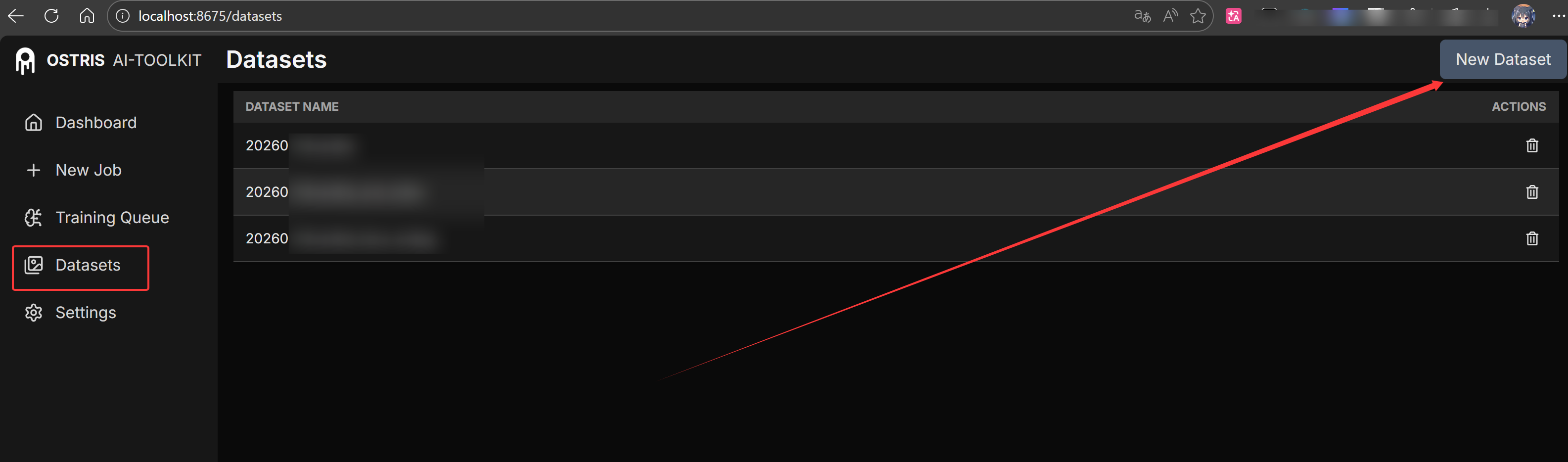
打开ai-toolkit界面,点击左侧Datasets选项,新建一个数据集,然后将准备好的数据文件夹拖入。

训练参数设置

这部分主要是参考他人经验。

推荐显存大小在12G甚至16G以上、内存足够大(越大越好)。其实云端挺不错的,租个4090之类的也跑不了几个小时。

左侧点击“New Job”按钮。

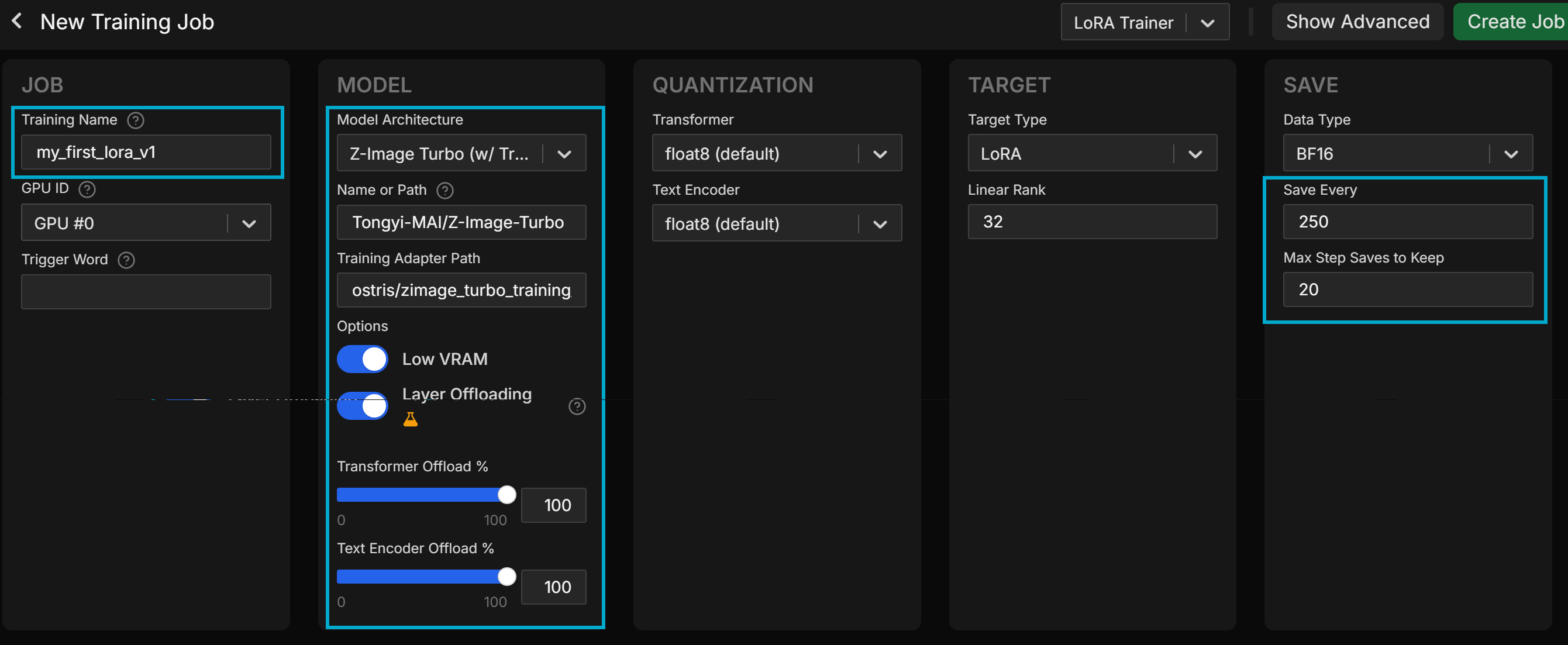
基本设置

  • Training Name:填写本次训练的名字。
  • Trigger Word:LoRA触发词。可不填。
  • Model:选Z-Image-Turbo。
  • Name or Path:如果提前下载好了,则填写下载的文件夹路径;否则默认填写。
  • Traing Adapter Path:Turbo模型比较特殊,由于是蒸馏加速的,直接练lora会导致模型失去这种加速性质,所以需要使用别人训练好的一个adapter。如果没有自己下载就默认填写,开始运行的时候会自动下载。详细见zimage_turbo_training_adapter · 模型库
  • Low VRAM和Layer Offloading:如果没有24G显存,建议如图开启。
  • Linear Rank:设置LoRA的大小,推荐选16、32等。
  • Save Every:每多少step进行保存一次权重。如果是练人脸LoRA,由于一共只需1000~3000step就有效果,所以可适当调小(比如我设置250step)
  • Max Step Saves to Keep:最多保存(最新的)多少个模型权重文件。建议拉大。一个LoRA才不到100MB,不缺这点硬盘空间。

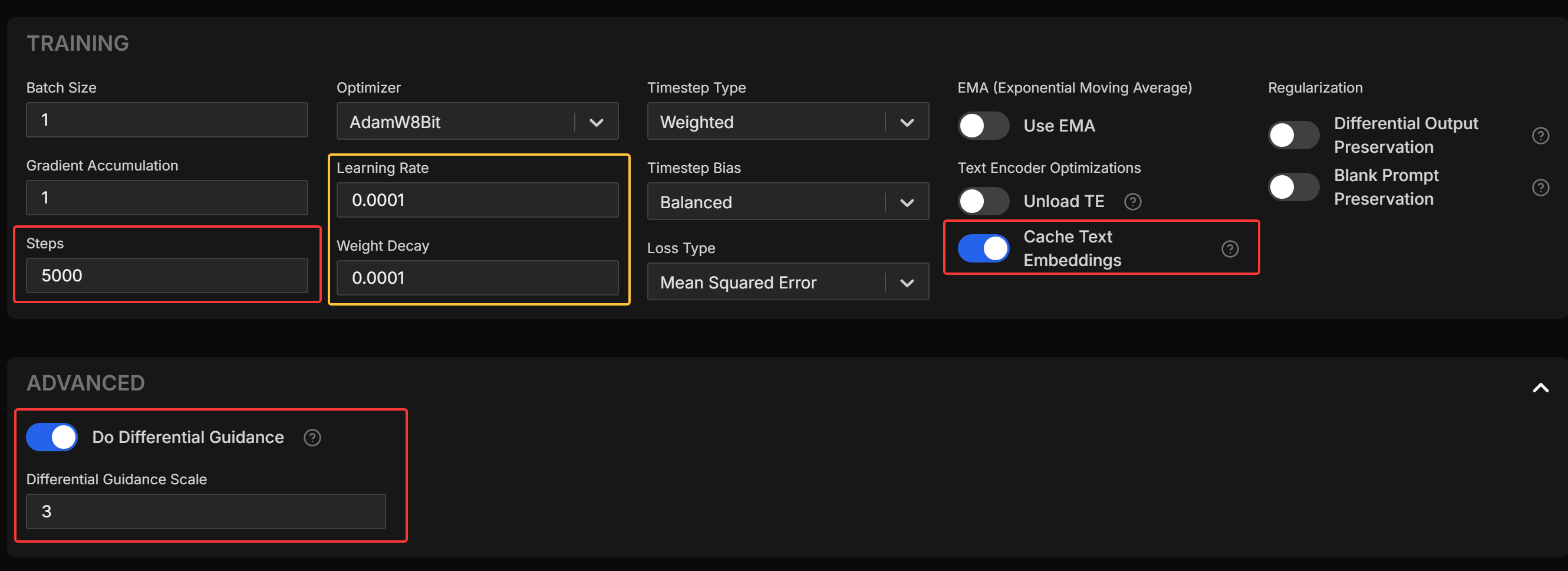
训练设置

  • Steps:训练多少步。可以通过这两个经验来估算:

    1. 每张人脸图片学习10次左右就足够了,故设置不超过数据集大小×10
    2. 人脸LoRA模型学习1000~3000次,模型差不多就拟合的很好了

    可以通过这两种方式来进行估算。可以适当调大,因为之后可设置Sample输入来观察模型各个截断的变化。

  • Learning Rate和Weight Decay:保持默认。发现效果不够好的话再尝试修改。

  • Cache Text Embeddings:缓存文本嵌入数据以节约显存。

  • Do Differential Guidance:打开。

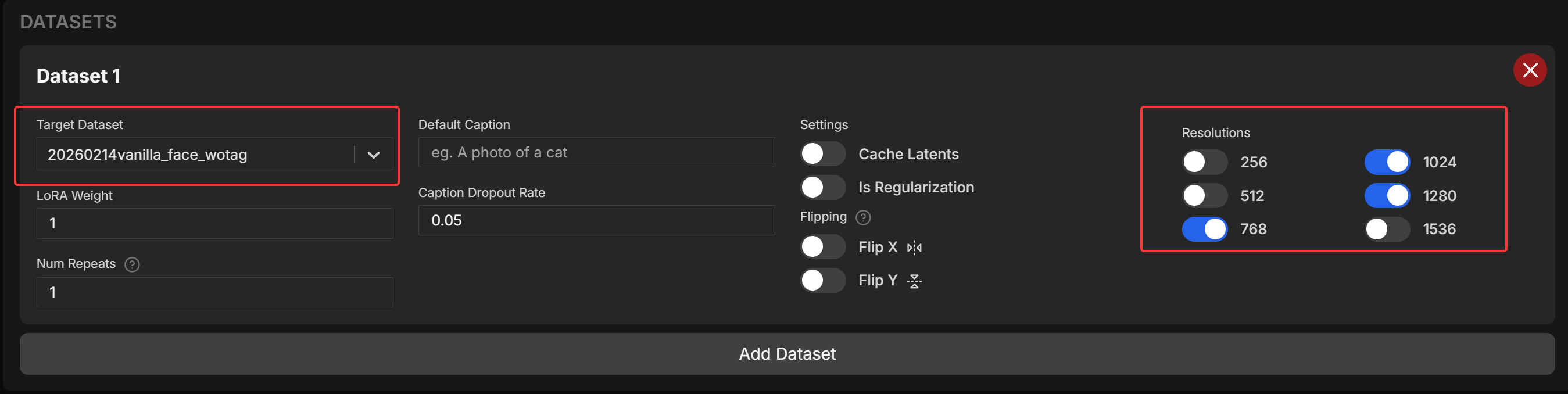
数据集设置

  • Target Dataset:选方才创建的数据集。
  • Resolutions:将图片缩放到哪个尺寸下进行训练。如果显存足够,那么越大越好。参考:
    • 16G显存可以选择性选上1536,我实测会用满显存,稍微降速。
    • 选768+1024+1280,占用不会满,速度约6sec/iter(4070Ti Super)
    • 选512+768+1024,速度约4.5sec/iter(4070Ti Super)
    • 速度不稳定。

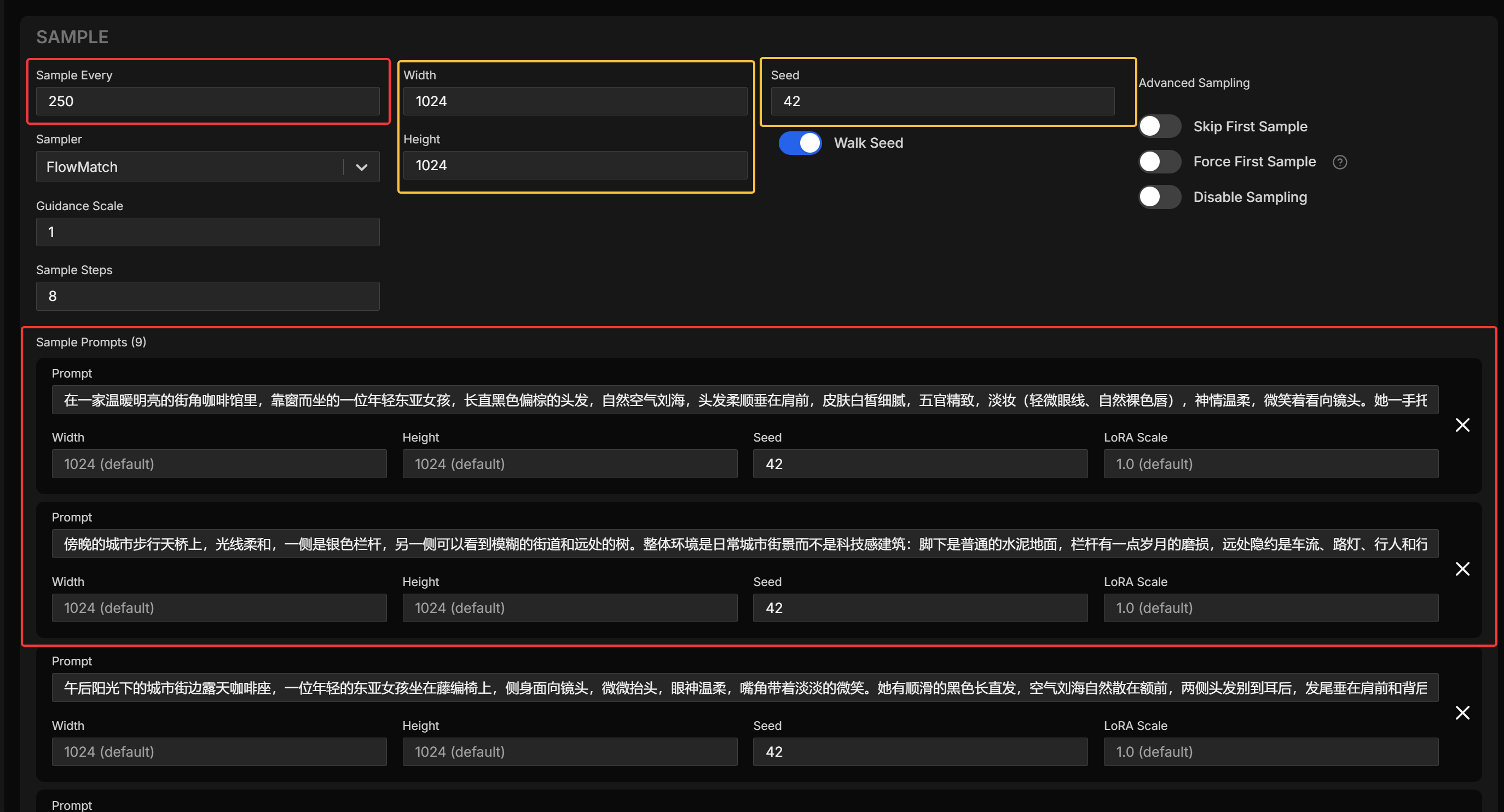
测试设置

  • Sample Every:每多少步骤进行一次测试采样。建议与之前的“Save Every”保持一致。
  • Width&Height:采样输出图片的大小。建议覆盖之前Resolutions选择的图片尺寸,或者根据实际需求选择。
  • Seed:我建议固定42方便观察与后续实验对比。
  • Prompt:必填,即文本提示词。如果有设置触发词,则需要先填在前面。

开始训练

然后就可以点击右上角“Create Job”开始训练啦!

我训练了人脸LoRA:

  • 在750step时初感有效
  • 1000step就能看出五官相似
  • 1250step学习到了角色固定的发型
  • 1750step时有张sample给角色带上了常戴的眼镜(数据集里面有一部分是戴眼镜的)

Samples页可以看到每次Sample的图片。Loss Graph页可观察曲线,但通常下降不会太明显。

Reference

Z-image-turbo初级炼丹记录:针对“蒸馏模型”的LoRA训练 - 知乎

ostris/ai-toolkit:用于微调扩散模型的终极训练工具包 --- ostris/ai-toolkit: The ultimate training toolkit for finetuning diffusion models

造相-Z-Image-Turbo · 模型库

zimage_turbo_training_adapter · 模型库